0%

docker+nginx(vue)获取真实ip

nginx必须安装--with-http_realip_module通过此命令2>&1 nginx -V | tr -- - '\n' | grep http_realip_module进行检查

nginx -V 可以查看到的编译参数和编译的模块(静态和动态)

  1. nginx设置代理

    1
    2
    3
    4
    5
    6
    7
    8
    9
    10
    11
    server {
    listen 8080;
    server_name localhost;

    location / {
    proxy_set_header X-Real-IP $remote_addr;
    proxy_set_header X-Forwarded-For $proxy_add_x_forwarded_for;
    root /usr/share/nginx/html;
    index index.html index.htm;
    }
    }
  2. 代码设置

    1
    2
    3
    4
    5
    6
    public RestResult login(@RequestBody User user,HttpServletRequest request) {
    String ip = request.getHeader("X-Real-IP");
    if (ip == null || ip.length() == 0 || "unknown".equalsIgnoreCase(ip)) {
    ip = request.getRemoteAddr();
    }
    }
  3. 请求头设置

    1
    2
    3
    4
    5
    POST /app/index/login HTTP/1.1
    Host: 192.168.1.230:14083
    Content-Type: application/json
    X-Real-IP: 192.16.1.1
    cache-control: no-cache

经测试:

只需2,3设置即可,1设置无效,如果只设置1和3还是不是真实ip,所以变量remote_addr不是真实ip(该ip实际从哪里来待确定?),X-Real-IP是自定义header头,相当于key,要一致

总结

方法一:

由于nginx安装在docker集群,nginx获取的ip(remote_addr)总是某个(不确定是哪里来的)的ip(10.255.0.3),因此1设置无效

解决nginx服务采用host模式,端口配置采用

1
2
3
4
5
ports:
- target: 8888
published: 14881 #只有worker能访问该端口
protocol: tcp
mode: host #版本要求3.2

采用了host就没了负载均衡了

方法二:

是用客户端添加自定义头X-Real-IP但是前端请求暂时加不进去,且后端要修改获取ip的方法

参考
在使用了NGINX的时候,如何获取访问用户的IP

Unable to retrieve user’s IP address in docker swarm mode

三大主流分布式计算系统

Hadoop

Hadoop常用于离线的复杂的大数据分析处理

Hadoop采用MapReduce分布式计算框架,并根据GFS开发了HDFS分布式文件系统,根据BigTable开发了HBase数据存储系统。

Spark

Spark常用于离线的快速的大数据处理

Spark使用内存来存储数据

Storm

Storm常用于在线的实时的大数据处理

Storm不进行数据的收集和存储工作,它直接通过网络实时的接受数据并且实时的处理数据,然后直接通过网络实时的传回结果。

参考

主流的三大分布式计算系统:Hadoop,Spark和Storm

防火墙配置

iptables

1
2
3
4
5
6
7
8
#查看防火墙状态
systemctl status iptables.service
#查看现有防火墙规则,以及是否生效
iptables -L -n
#开放9000端口
iptables -I INPUT -p tcp --dport 9000 -m state --state NEW -j ACCEPT
#生效后保存iptables
iptables-save > /etc/sysconfig/iptables

防火墙端口配置需要放到哪两句之前

解决Linux:No route to host

firewall

1
2
3
4
5
6
7
8
9
10
11
12
13
14
15
# 添加端口7000-7005/17000-17005
firewall-cmd --zone=public --add-port=7000/tcp --permanent
# 重载配置
firewall-cmd --reload
# 检查防火墙规则
firewall-cmd --list-all
# ports: 7000/tcp 7001/tcp 7002/tcp 7003/tcp 7004/tcp 7005/tcp 17005/tcp 17004/tcp 17003/tcp 17002/tcp 17001/tcp 17000/tcp
# 查看防火墙状态
firewall-cmd --state
# 临时关闭防火墙,重启后会重新自动打开
systemctl restart firewalld
#关闭
systemctl stop firewalld.service
开机禁用
systemctl disable firewalld.service

linux挂载相关命令

注意挂载操作不要在挂载目录里面操作

1
2
3
4
5
6
7
8
9
10
11
12
#查看磁盘分区情况
lsblk
#查看磁盘详情
fdisk -l
#挂载 ,提前建好挂在目录,这句诗挂载sdc设备的第五个分区
mount /dev/sdc5 /mnt/udisk
# 挂载ntfs的系统需要先安装ntfs-3g
yum install ntfs-3g
# 查看是否挂载成功
df -h
# 卸载
umount

hyper-v centos挂载其他vhd 硬盘

mount: unknown filesystem type 'LVM2_member'

1
2
3
fdisk -l
mount /dev/mapper/centos-root /mnt/disk
umount /mnt/disk

腾讯云初始化和挂载硬盘

  1. fdisk -l查看磁盘, 如果没有输出硬盘检查云盘状态是否已挂载

    1
    Disk /dev/vdb: 107.4 GB, 107374182400 bytes, 209715200 sectors
  2. fdisk /dev/vdb创建新分区依次输入“n”(新建分区)、“p”(新建主分区)、“1”(使用第1个主分区),两次回车(使用默认配置),输入“wq”(保存分区表)

    1
    2
    3
    4
    5
    6
    7
    8
    9
    10
    11
    12
    13
    14
    15
    16
    17
    18
    19
    20
    21
    22
    23
    24
    25
    Welcome to fdisk (util-linux 2.23.2).

    Changes will remain in memory only, until you decide to write them.
    Be careful before using the write command.

    Device does not contain a recognized partition table
    Building a new DOS disklabel with disk identifier 0x45f0094c.

    Command (m for help): n
    Partition type:
    p primary (0 primary, 0 extended, 4 free)
    e extended
    Select (default p): p
    Partition number (1-4, default 1): 1
    First sector (2048-209715199, default 2048):
    Using default value 2048
    Last sector, +sectors or +size{K,M,G} (2048-209715199, default 209715199):
    Using default value 209715199
    Partition 1 of type Linux and of size 100 GiB is set

    Command (m for help): wq
    The partition table has been altered!

    Calling ioctl() to re-read partition table.
    Syncing disks.
  3. fdisk -l 检查

    1
    2
    3
    4
    5
    6
    7
    8
    9
    10
    11
    12
    13
    14
    15
    16
    17
    18
    19
    Disk /dev/vda: 53.7 GB, 53687091200 bytes, 104857600 sectors
    Units = sectors of 1 * 512 = 512 bytes
    Sector size (logical/physical): 512 bytes / 512 bytes
    I/O size (minimum/optimal): 512 bytes / 512 bytes
    Disk label type: dos
    Disk identifier: 0x000c5e30

    Device Boot Start End Blocks Id System
    /dev/vda1 * 2048 104857599 52427776 83 Linux

    Disk /dev/vdb: 107.4 GB, 107374182400 bytes, 209715200 sectors
    Units = sectors of 1 * 512 = 512 bytes
    Sector size (logical/physical): 512 bytes / 512 bytes
    I/O size (minimum/optimal): 512 bytes / 512 bytes
    Disk label type: dos
    Disk identifier: 0x45f0094c

    Device Boot Start End Blocks Id System
    /dev/vdb1 2048 209715199 104856576 83 Linux
  4. mkdir /data如果没有创建挂载目录

  5. mkfs.ext3 /dev/vdb1 格式化硬盘

  6. mount /dev/vdb1 /data设置挂载

  7. vim /etc/fstab设置开机启动自动挂载,fstab追加行

    1
    /dev/vdb1            /data                ext3       defaults              0 0

青云centos7.8挂载扩容docker目录

1
2
3
4
5
6
7
8
9
10
11
12
13
14
15
16
# 分区 n ——>p ——>1 ——>回车 ——>回车 ——>w
fdisk /dev/sdc
# 格式化
mkfs.ext4 /dev/sdc
# 创建挂载目录
mkdir -p /var/lib/docker
# 挂载
mount /dev/sdc /var/lib/docker
# 查看
df -h
#---------------------
# 设置重启自动挂载
# 查看dev/sdc硬盘对应UUID
blkid /dev/sdc
# 在该文件/etc/fstab追加一行,修改UUID的值为上个命令对应的UUID
echo 'UUID=36ef3867-0b8a-4e99-8c0e-ffd8ebc1a226 /var/lib/docker ext4 defaults 0 0' >>/etc/fstab

参考

How to Mount a NTFS Drive on CentOS / RHEL / Scientific Linux

修改fstab文件磁盘标识方式为UUID

mybatis使用基础

1
2
3
4
5
6
7
8
9
10
11
12
13
14
15
16
17
18
<mapper namespace="com.willson.service.mapper.infrared.InfraredPictureMapper">
<resultMap id="BaseResultMap" type="com.willson.facade.pojo.infrared.InfraredPicture">
<id column="r_id" />
<result column="id" jdbcType="BIGINT" property="id" />
<association property="resource" javaType="com.willson.facade.pojo.sys.Resource" columnPrefix="r_" >
<id column="id" property="id" jdbcType="BIGINT"/>
<result column="name" property="name" jdbcType="VARCHAR"/>
</association>
<collection property="soil" ofType="com.willson.facade.pojo.plot.Soil" columnPrefix="s_">
<id column="id" property="id" jdbcType="BIGINT"/>
<result column="plot_num" jdbcType="VARCHAR" property="plotNum" />
</collection>
</resultMap>

<sql id="Base_Column_List">
t.id,
r.id r_id
</sql>

解释:

<id column="r_id" /> 一般主键id,如果id存在相同(例如一对多时),id相同的就只会显示一个,因此在多一对多是,关联字段也要加别名

<association > 对应实体类object ,一对一

<collection >对应list< Object > ,一对多

geoserver绘制形状

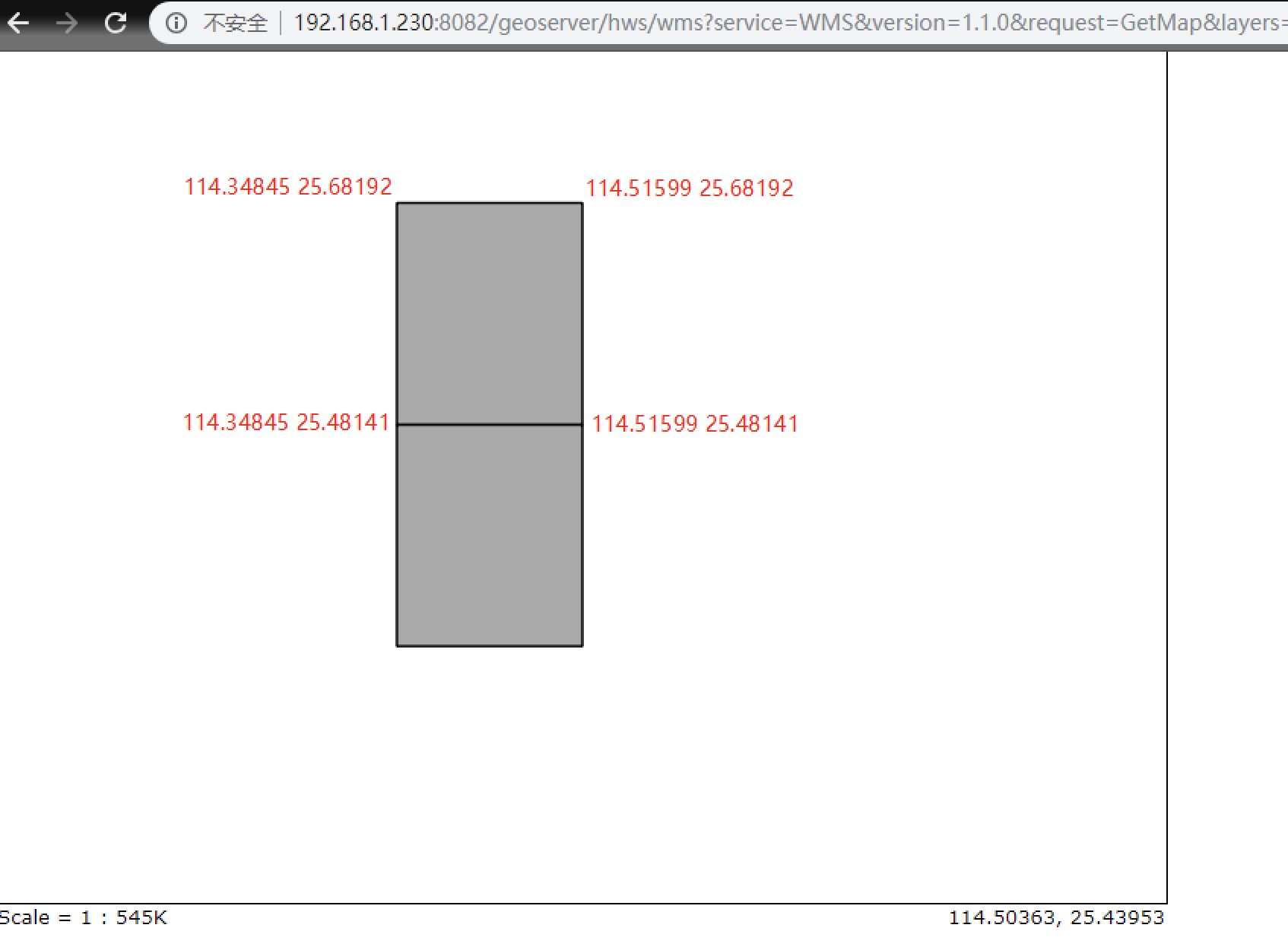
绘制矩形图形(POLYGON)

注意事项:第一个点和最后一个点必须相同,因此矩形至少是5个点

geoserver

1
2
3
4
5
--添加面
SET @g = 'POLYGON((114.34845 25.48141, 114.34845 25.28141, 114.51599 25.28141, 114.51599 25.48141, 114.34845 25.48141))';
INSERT INTO test(shape) VALUES (ST_PolygonFromText(@g));
--添加点
SET @g = ST_GeomFromText('POINT(114.44845 25.38141)'); INSERT INTO test(shape) VALUES (@g);

表结构:

类型
id int
shape geometry
name varchar

常见语句

1
2
3
4
5
6
7
8
9
10
11
12
13
14
15
16

-- 插入
SET @g = ST_GeomFromText('POINT(109.49097 19.06798)',1);
INSERT INTO infcamer(shape) VALUES (@g);
-- 更新
UPDATE `功能分区面` set SHAPE=ST_PolygonFromText(@g,1) WHERE OGR_FID=1;
-- 查询坐标是否正确设置
SELECT * FROM infcamer WHERE ST_Contains(SHAPE, ST_GeomFromText( 'POINT(109.49097 19.06798)',0))
-- 查询空间坐标相关设置
SELECT * FROM spatial_ref_sys LIMIT 0, 50;
-- geoserver数据库
GEOGCS["WGS 84",DATUM["WGS_1984",SPHEROID["WGS 84",6378137,298.257223563,AUTHORITY["EPSG","7030"]],AUTHORITY["EPSG","6326"]],PRIMEM["Greenwich",0,AUTHORITY["EPSG","8901"]],UNIT["degree",0.0174532925199433,AUTHORITY["EPSG","9122"]],AUTHORITY["EPSG","4326"]]
-- test数据库
GEOGCS["GCS_WGS_1984",DATUM["WGS_1984",SPHEROID["WGS_1984",6378137.0,298.257223563]],PRIMEM["Greenwich",0.0],UNIT["Degree",0.0174532925199433]]

GEOGCS["GCS_WGS_1984",DATUM["WGS_1984",SPHEROID["WGS_1984",6378137.0,298.257223563]],PRIMEM["Greenwich",0.0],UNIT["Degree",0.0174532925199433],METADATA["World",-180.0,-90.0,180.0,90.0,0.0,0.0174532925199433,0.0,1262]]

镂空面

数据格式为

POLYGON((a a, b b,a a),(c c,d d, c c))

常见问题

  1. 点坐标查询提示[Err] 3033 - Binary geometry function st_contains given two geometries of different srids: 0 and 1, which should have been identical.

    分析:由于插入时的srid不一致,用SELECT * FROM infcamer WHERE ST_Contains(SHAPE, ST_GeomFromText( 'POINT(109.49097 19.06798)'))查询时没有指定srid,所以报错提示有不同的srid

    解决1:查询时指定srid例如:SELECT * FROM infcamer WHERE ST_Contains(SHAPE, ST_GeomFromText( 'POINT(109.49097 19.06798)',0))

    解决2:插入时指定srid,指定的srid最好和原有记录的srid一致,这样就不会存在different srids: 0 and 1,例如:SET @g = ST_GeomFromText('POINT(109.49097 19.06798)',0); INSERT INTO infcamer(shape) VALUES (@g);

  2. Navicat客户端看不到完整数据,最好导出看

参考

Mysql官方文档

Mysql的空间扩展 较全,值得一看

mysql ogr2ogr error

docker 统一存储之ceph

知识

ceph核心服务

  1. MonItor(mon) 监视器

    维护集群状态的映射,包括监视器映射,管理器映射,OSD映射和CRUSH映射。这些映射是Ceph守护进程相互协调所需的关键集群状态。监视器还负责管理守护进程和客户端之间的身份验证。冗余和高可用性通常至少需要三个监视器。

  2. Managers(mgr) 管理器

    守护程序(ceph-mgr)负责跟踪运行时指标和Ceph集群的当前状态,包括存储利用率,当前性能指标和系统负载。 Ceph Manager守护进程还托管基于python的插件来管理和公开Ceph集群信息,包括基于Web的Ceph Manager Dashboard和REST API。高可用性通常至少需要两个管理器。

  3. OSDs(osd_ceph_disk) 对象存储守护进程

    存储数据,处理数据复制,恢复,重新平衡,并通过检查其他Ceph OSD守护进程来获取心跳,为Ceph监视器和管理器提供一些监视信息。冗余和高可用性通常至少需要3个Ceph OSD。

  4. MDSs(mds) Ceph元数据服务器

    代表Ceph文件系统存储元数据(即,Ceph块设备和Ceph对象存储不使用MDS)。 Ceph元数据服务器允许POSIX文件系统用户执行基本命令(如ls,find等),而不会给Ceph存储集群带来巨大负担。

问题

  1. 断电关机重启问题,如果是安装在容器里,面临自动挂载和卸载问题

    如果挂载了关机时,容器先关闭,导致卸载出问题,一直关不了机

    开机时重新挂载,看不到数据问题

  2. 集群部署,osd服务的 privileged: true特权模式不支持,导致不能操作mount相关

  3. 采用docker plugin install rexray/rbd插件模式挂载,服务的挂载目录不能更改,且外部需要安装ceph基本组件(考虑是否部分服务安装主机上,可解决123问题)

安装

重新部署执行

docker run -d --privileged=true -v /dev/:/dev/ -e OSD_DEVICE=/dev/sda ceph/daemon zap_device

并清理目录

  1. 三台机执行,其中MON_IP替换本机ip

    1
    2
    3
    4
    5
    6
    7
    8
    docker run -d \
    --name=mon \
    --net=host \
    -v /etc/ceph:/etc/ceph \
    -v /var/lib/ceph/:/var/lib/ceph/ \
    -e MON_IP=192.168.1.230 \
    -e CEPH_PUBLIC_NETWORK=192.168.1.0/24 \
    ceph/daemon mon

    该部不能通过集群stack部署,因为--net=host是指用主机网络

  2. 然后复制目录/dockerdata/ceph/data到另一台机,复制/dockerdata/ceph/config/bootstrap*到另一台机

  3. 启动第二台,如果有第三台,第三台同理

  4. 执行docker exec mon ceph -s就可以看到两台了

    1
    2
    3
    4
    5
    6
    7
    8
    9
    10
    11
    12
    13
    14
    15
    [root@environment-test1 ceph]#  docker exec mon ceph -s
    cluster:
    id: cf6e2bed-0eb6-4ba1-9854-e292c936ea0f
    health: HEALTH_OK

    services:
    mon: 2 daemons, quorum lfadmin,environment-test1
    mgr: no daemons active
    osd: 0 osds: 0 up, 0 in

    data:
    pools: 0 pools, 0 pgs
    objects: 0 objects, 0 B
    usage: 0 B used, 0 B / 0 B avail
    pgs:
  5. 添加osd,需要先在主机上添加一块新硬盘,执行lsblk查看硬盘编号,硬盘非空,会启动报错,如何清空看磁盘格始化(删除所有分区),单个分区sda5不成功,最后只好全磁盘格式化

    1
    2
    3
    4
    5
    6
    7
    8
    9
    10
    11
    docker run -d \
    --net=host \
    --name=ceph_osd \
    --restart=always \
    -v /etc/ceph:/etc/ceph \
    -v /var/lib/ceph/:/var/lib/ceph/ \
    -v /dev/:/dev/ \
    --privileged=true \
    -e OSD_FORCE_ZAP=1 \
    -e OSD_DEVICE=/dev/sda \
    ceph/daemon osd_ceph_disk
  6. 执行docker exec mon ceph -s就可以看到两台了和一个osd了,但是空间详情看不到,需要运行mds和rgw服务

    1
    2
    3
    4
    5
    6
    7
    8
    9
    10
    11
    12
    13
    14
    15
    16
    [root@environment-test1 ~]# docker exec mon ceph -s
    cluster:
    id: cf6e2bed-0eb6-4ba1-9854-e292c936ea0f
    health: HEALTH_WARN
    no active mgr

    services:
    mon: 2 daemons, quorum lfadmin,environment-test1
    mgr: no daemons active
    osd: 1 osds: 1 up, 1 in

    data:
    pools: 0 pools, 0 pgs
    objects: 0 objects, 0 B
    usage: 0 B used, 0 B / 0 B avail
    pgs:
  7. 添加 mgr

    1
    2
    3
    4
    5
    6
    docker run -d \
    --net=host \
    --name=mgr \
    -v /dockerdata/ceph/data:/etc/ceph \
    -v /dockerdata/ceph/config/:/var/lib/ceph/ \
    ceph/daemon mgr
  8. 添加 mds

    1
    2
    3
    4
    5
    6
    7
    8

    docker run -d \
    --net=host \
    --name=mds \
    -v /dockerdata/ceph/data:/etc/ceph \
    -v /dockerdata/ceph/config/:/var/lib/ceph/ \
    -e CEPHFS_CREATE=1 \
    ceph/daemon mds
  9. 添加 rgw

    1
    2
    3
    4
    5
    6
    docker run -d \
    --name=rgw \
    -p 80:80 \
    -v /dockerdata/ceph/data:/etc/ceph \
    -v /dockerdata/ceph/config/:/var/lib/ceph/ \
    ceph/daemon rgw
  10. 再次执行docker exec mon ceph -s查看,就可以看到空间信息了

    1
    2
    3
    4
    5
    6
    7
    8
    9
    10
    11
    12
    13
    14
    15
    16
    17
    18
    19
    20
    21
    [root@environment-test1 ~]# docker exec mon ceph -s
    cluster:
    id: cf6e2bed-0eb6-4ba1-9854-e292c936ea0f
    health: HEALTH_WARN
    1 MDSs report slow metadata IOs
    Reduced data availability: 24 pgs inactive
    Degraded data redundancy: 24 pgs undersized
    too few PGs per OSD (24 < min 30)

    services:
    mon: 2 daemons, quorum lfadmin,environment-test1
    mgr: environment-test1(active)
    mds: cephfs-1/1/1 up {0=environment-test1=up:creating}
    osd: 1 osds: 1 up, 1 in

    data:
    pools: 3 pools, 24 pgs
    objects: 0 objects, 0 B
    usage: 2.0 GiB used, 463 GiB / 465 GiB avail
    pgs: 100.000% pgs not active
    24 undersized+peered

使用

测试发现只有一个osd挂载失败,因此在两台电脑都添加osd,并都挂载

  1. 首先查看登陆用户名和密码

    1
    2
    3
    4
    5
    6
    7
    8
    [root@environment-test1 ~]# cat /dockerdata/ceph/data/ceph.client.admin.keyring 
    [client.admin]
    key = AQDTqMFbDC4UAxAApyOvC8I+8nA5PMK1bHWDWQ==
    auid = 0
    caps mds = "allow"
    caps mgr = "allow *"
    caps mon = "allow *"
    caps osd = "allow *"
  2. 创建挂载目录

    1
    [root@lfadmin mnt]# mkdir /mnt/mycephfs
  3. 挂载

    1
    [root@lfadmin mnt]# mount -t ceph 192.168.1.213,192.168.1.230,192.168.1.212:/ /dockerdata/cephdata -o name=admin,secret=AQCu98JblQgRChAAskEmJ1ekN2Vasa9Chw+gvg==
  4. 设置开机自动挂载?

  5. 取消挂载umount /mnt/mycephfs/ 如果被占用,关闭占用程序和窗口

docker exec ea8577875af3 ceph osd tree

测试

  1. 两台节点,一台当掉,不能访问挂载目录

集成部署

1
2
3
4
5
6
7
8
9
10
11
12
13
14
15
16
17
18
19
20
21
22
23
24
25
26
27
28
29
30
31
32
33
34
35
36
37
38
39
40
41
42
43
44
45
46
47
48
49
50
51
52
53
54
55
56
57
58
59
60
61
62
63
64
65
66
67
68
69
70
71
72
73
74
75
76
77
78
79
80
81
82
83
84
85
86
87
88
89
90
91
92
93
94
95
96
97
98
99
100
101
102
103
104
105
106
107
108
109
110
111
112
113
114
115
116
117
118
119
120
121
122
123
124
125
126
127
128
129
130
131
132
133
134
135
136
137
138
139
140
141
142
143
144
145
146
147
148
149
150
151
152
153
154
155
156
version: "3.6"

networks:
hostnet:
external: true
name: host

services:
mon212:
restart: always
image: ceph/daemon
command: mon
networks:
hostnet: {}
volumes:
- /etc/ceph:/etc/ceph
- /var/lib/ceph/:/var/lib/ceph/
environment:
MON_IP: 192.168.1.212
CEPH_PUBLIC_NETWORK: 192.168.1.0/24
deploy:
replicas: 1
restart_policy:
condition: on-failure
placement:
constraints: [node.hostname == worker]
mon213:
restart: always
image: ceph/daemon
command: mon
networks:
hostnet: {}
volumes:
- /etc/ceph:/etc/ceph
- /var/lib/ceph/:/var/lib/ceph/
environment:
MON_IP: 192.168.1.213
CEPH_PUBLIC_NETWORK: 192.168.1.0/24
deploy:
replicas: 1
restart_policy:
condition: on-failure
placement:
constraints: [node.hostname == lfadmin]
mon230:
restart: always
image: ceph/daemon
command: mon
networks:
hostnet: {}
volumes:
- /etc/ceph:/etc/ceph
- /var/lib/ceph/:/var/lib/ceph/
environment:
MON_IP: 192.168.1.230
CEPH_PUBLIC_NETWORK: 192.168.1.0/24
deploy:
replicas: 1
restart_policy:
condition: on-failure
placement:
constraints: [node.hostname == environment-test1]
mgr230:
restart: always
image: ceph/daemon
command: mgr
networks:
hostnet: {}
volumes:
- /etc/ceph:/etc/ceph
- /var/lib/ceph/:/var/lib/ceph/
deploy:
replicas: 1
restart_policy:
condition: on-failure
placement:
constraints: [node.hostname == environment-test1]
mds230:
restart: always
image: ceph/daemon
command: mds
networks:
hostnet: {}
volumes:
- /etc/ceph:/etc/ceph
- /var/lib/ceph/:/var/lib/ceph/
environment:
CEPHFS_CREATE: 1
deploy:
replicas: 1
restart_policy:
condition: on-failure
placement:
constraints: [node.hostname == environment-test1]
rgw230:
restart: always
image: ceph/daemon
command: rgw
networks:
hostnet: {}
volumes:
- /etc/ceph:/etc/ceph
- /var/lib/ceph/:/var/lib/ceph/
ports:
- target: 80
published: 14002 #只有worker能访问该端口
protocol: tcp
mode: host #版本要求3.2
deploy:
replicas: 1
restart_policy:
condition: on-failure
placement:
constraints: [node.hostname == environment-test1]
# osd挂载需要特权模式(privileged=true),目前不支持
# osd213:
# restart: always
# image: ceph/daemon
# command: osd_ceph_disk
# privileged: true
# networks:
# hostnet: {}
# volumes:
# - /dockerdata/ceph/data:/etc/ceph
# - /dockerdata/ceph/config/:/var/lib/ceph/
# - /dev/:/dev/
# environment:
# OSD_FORCE_ZAP: 1
# OSD_DEVICE: /dev/sda
# deploy:
# replicas: 1
# restart_policy:
# condition: on-failure
# placement:
# constraints: [node.hostname == lfadmin]
# osd230:
# restart: always
# image: ceph/daemon
# command: osd_ceph_disk
# privileged: true
# networks:
# hostnet: {}
# volumes:
# - /dockerdata/ceph/data:/etc/ceph
# - /dockerdata/ceph/config/:/var/lib/ceph/
# - /dev/:/dev/
# environment:
# OSD_FORCE_ZAP: 1
# OSD_DEVICE: /dev/sda
# deploy:
# replicas: 1
# restart_policy:
# condition: on-failure
# placement:
# constraints: [node.hostname == environment-test1]

注意

swarm 不支持 privileged: true特权模式,所以使用集群部署时,提示没有权限

磁盘格始化(删除所有分区)

查看分区情况lsblk

1
2
3
4
5
6
7
8
9
10
11
12
13
14
15
[root@environment-test1 ~]# lsblk
NAME MAJ:MIN RM SIZE RO TYPE MOUNTPOINT
sda 8:0 0 465.8G 0 disk
├─sda1 8:1 0 70.9G 0 part
├─sda2 8:2 0 1K 0 part
├─sda5 8:5 0 105.1G 0 part
├─sda6 8:6 0 145G 0 part
└─sda7 8:7 0 144.7G 0 part
sdb 8:16 0 465.8G 0 disk
├─sdb1 8:17 0 200M 0 part /boot/efi
├─sdb2 8:18 0 1G 0 part /boot
└─sdb3 8:19 0 464.6G 0 part
├─centos-root 253:0 0 408G 0 lvm /
├─centos-swap 253:1 0 5.8G 0 lvm [SWAP]
└─centos-home 253:2 0 50G 0 lvm /home

格式化磁盘mkfs.ext4 /dev/sda,如果是格式化一个区,跟上特定数字,例如mkfs.ext4 /dev/sda5

1
2
3
4
5
6
7
8
9
10
11
12
13
14
15
16
17
18
19
20
21
22
23
24
25
[root@environment-test1 ~]# mkfs.ext4 /dev/sda
mke2fs 1.42.9 (28-Dec-2013)
/dev/sda is entire device, not just one partition!
无论如何也要继续? (y,n) y
文件系统标签=
OS type: Linux
块大小=4096 (log=2)
分块大小=4096 (log=2)
Stride=0 blocks, Stripe width=0 blocks
30531584 inodes, 122096646 blocks
6104832 blocks (5.00%) reserved for the super user
第一个数据块=0
Maximum filesystem blocks=2271215616
3727 block groups
32768 blocks per group, 32768 fragments per group
8192 inodes per group
Superblock backups stored on blocks:
32768, 98304, 163840, 229376, 294912, 819200, 884736, 1605632, 2654208,
4096000, 7962624, 11239424, 20480000, 23887872, 71663616, 78675968,
102400000

Allocating group tables: 完成
正在写入inode表: 完成
Creating journal (32768 blocks): 完成
Writing superblocks and filesystem accounting information: 完成

再次查看

1
2
3
4
5
6
7
8
9
10
[root@environment-test1 ~]# lsblk
NAME MAJ:MIN RM SIZE RO TYPE MOUNTPOINT
sda 8:0 0 465.8G 0 disk
sdb 8:16 0 465.8G 0 disk
├─sdb1 8:17 0 200M 0 part /boot/efi
├─sdb2 8:18 0 1G 0 part /boot
└─sdb3 8:19 0 464.6G 0 part
├─centos-root 253:0 0 408G 0 lvm /
├─centos-swap 253:1 0 5.8G 0 lvm [SWAP]
└─centos-home 253:2 0 50G 0 lvm /home

减少(压缩)分区空间(大小)

CentOS Linux如何无损调整分区大小(XFS文件系统) : 没有做到无损

没找到无损调整的方法

https://www.linuxidc.com/Linux/2016-06/132270.htm

http://blog.51cto.com/happyliu/1902022

参考

[喵咪Liunx(7)]Ceph分布式文件共享解决方案

https://tobegit3hub1.gitbooks.io/ceph_from_scratch/content/usage/index.html

swarm脚本部署

mac 篇

常用命令

1
2
3
4
5
6
7
8
9
10
11
12
13
14
15
16
17
18
19
20
21
22
23
24
25
26
27
# 查看当前路由表
netstat -rn
----------------------------------------------------------------
Routing tables
Internet:
Destination Gateway Flags Netif Expire
default 192.168.43.88 UGSc en0
default 11.13.2.254 UGScI en7
-----------------------------------------------------------------
#获取默认路由
route get 0.0.0.0
--------------------------------------------------------------------------------
route to: default
destination: default
mask: default
gateway: 192.168.43.88
interface: en0
flags: <UP,GATEWAY,DONE,STATIC,PRCLONING>
recvpipe sendpipe ssthresh rtt,msec rttvar hopcount mtu expire
0 0 0 0 0 0 1500 0
---------------------------------------------------------------------------------
#删除默认路由
sudo route -n delete default 192.168.43.88
#添加外网网关
sudo route add -net 0.0.0.0 192.168.43.88
#添加内网网关
sudo route add -net 11.8.129.0 11.13.2.254

Linux 篇

常见命令

1
2
3
4
5
6
7
8
9
10
#和网络有关的配置文件 
/etc/resolv.conf
#查看网关设置
grep GATEWAY /etc/sysconfig/network-scripts/ifcfg*
#增加网关:
route add default gw 192.168.40.1
#重启网络
service network restart
#查看DNS解析
grep hosts /etc/nsswitch.conf

分析

traceroute <ip>

网络测试、测量、管理、分析,官网

ICMP错误信息分析:

!H 不能到达主机

!N 不能到达网络

!P 不能到达的协议

!S 源路由失效

!F 需要分段

正常情况:

1
2
3
4
5
6
7
8
9
10
11
12
13
14
[root@environment-test1 ~]# traceroute 4.2.2.2
traceroute to 4.2.2.2 (4.2.2.2), 30 hops max, 60 byte packets
1 gateway (192.168.1.1) 0.440 ms 0.594 ms 0.743 ms
2 * * *
3 121.33.196.105 (121.33.196.105) 4.352 ms 4.443 ms 4.521 ms
4 183.56.31.37 (183.56.31.37) 7.290 ms 183.56.31.21 (183.56.31.21) 9.217 ms 183.56.31.13 (183.56.31.13) 6.755 ms
5 153.176.37.59.broad.dg.gd.dynamic.163data.com.cn (59.37.176.153) 6.884 ms 6.993 ms 7.084 ms
6 121.8.223.13 (121.8.223.13) 9.307 ms 5.848 ms 183.56.31.173 (183.56.31.173) 4.443 ms
7 202.97.94.130 (202.97.94.130) 4.029 ms 4.165 ms 202.97.94.142 (202.97.94.142) 5.546 ms
8 202.97.94.98 (202.97.94.98) 11.225 ms 202.97.94.118 (202.97.94.118) 6.177 ms 6.600 ms
9 202.97.52.18 (202.97.52.18) 209.571 ms 202.97.52.142 (202.97.52.142) 206.772 ms 202.97.58.2 (202.97.58.2) 197.316 ms
10 195.50.126.217 (195.50.126.217) 213.784 ms 213.917 ms 211.676 ms
11 4.69.163.22 (4.69.163.22) 312.436 ms 4.69.141.230 (4.69.141.230) 214.040 ms 213.168 ms
12 b.resolvers.Level3.net (4.2.2.2) 209.348 ms 210.701 ms 210.588 ms

有问题的情况:

1
2
3
[root@lfadmin ~]# traceroute 4.2.2.2
traceroute to 4.2.2.2 (4.2.2.2), 30 hops max, 60 byte packets
1 gateway (192.168.1.1) 0.751 ms !N 0.817 ms !N 1.326 ms !N

ifconfig <网卡名字>

netstat -r相似route

显示路由连接信息等

1
2
3
4
5
6
7
8
[root@environment-test1 ~]# netstat -r
Kernel IP routing table
Destination Gateway Genmask Flags MSS Window irtt Iface
default gateway 0.0.0.0 UG 0 0 0 enp3s0
link-local 0.0.0.0 255.255.0.0 U 0 0 0 enp3s0
172.17.0.0 0.0.0.0 255.255.0.0 U 0 0 0 docker0
172.18.0.0 0.0.0.0 255.255.0.0 U 0 0 0 doc...ridge
192.168.1.0 0.0.0.0 255.255.255.0 U 0 0 0 enp3s0

host <域名> 相似nslookup <域名>

dns分析

1
2
3
4
[root@environment-test1 ~]#  host www.baidu.com
www.baidu.com is an alias for www.a.shifen.com.
www.a.shifen.com has address 14.215.177.38
www.a.shifen.com has address 14.215.177.39

nmcli查看设备状态

ip route show | column -t 查看路由

问题1 :无法连外网,可以ping 路由器

提示

1
2
3
[root@lfadmin ~]# traceroute 4.2.2.2
traceroute to 4.2.2.2 (4.2.2.2), 30 hops max, 60 byte packets
1 gateway (192.168.1.1) 0.751 ms !N 0.817 ms !N 1.326 ms !N

解决原因,是网络配置文件uuid冲突,导致不能上网,修改即可

执行uuidgen ens33生产新的830a6ae2-85fb-41e7-9e5d-60d084f56f5f替换配置文件里面的

执行nmcli con | sed -n '1,2p'进行验证

参考

CentOS7配置网卡为静态IP,如果你还学不会那真的没有办法了!

实战按月分类list数据

数据源:

1
2
3
4
5
6
7
8
9
10
11
12
13
14
15
16
17
18
{
"2018年08月":[
{
"createTime":"2018-08-15 15:51:16"
},
{
"createTime":"2018-08-15 15:51:15"
}
],
"2018年09月":[
{
"createTime":"2018-09-15 15:51:16"
},
{
"createTime":"2018-09-15 15:51:15"
}
]
}

代码:

1
2
3
4
5
6
7
8
9
10
11
12
13
14
//-----------------实体类-----------------
public class ThematicMap extends BaseBean {
....
public String getMonth(){
Date createTime= this.getCreateTime(); //获取basebean的时间
SimpleDateFormat format1 = new SimpleDateFormat("yyyy年MM月");
return format1.format(createTime.getTime());
}
}
//--------------------------------------

List<ThematicMap> thematicMapList = thematicMapMapper.listForPage(params);
//getMonth方法获取数据,
Map<String,List<ThematicMap>> stringListMap=thematicMapList.stream().collect(Collectors.groupingBy(ThematicMap::getMonth,LinkedHashMap::new,Collectors.toList()));

Collectors.groupingBy(Function<? super T, ? extends K> classifier, ​ Supplier<M> mapFactory, ​ Collector<? super T, A, D> downstream)有三个参数

如果不考虑顺序一个参数即可thematicMapList.stream().collect(Collectors.groupingBy(ThematicMap::getMonth));

第二个参数是指定容器:默认值是HashMap::new,但是它会导致乱序,因此使用LinkedHashMap

最终数据结构

1
2
3
4
5
6
7
8
9
10
11
12
13
14
15
16
17
18
{
"2018年08月":[
{
"createTime":"2018-08-15 15:51:16"
},
{
"createTime":"2018-08-15 15:51:15"
}
],
"2018年09月":[
{
"createTime":"2018-09-15 15:51:16"
},
{
"createTime":"2018-09-15 15:51:15"
}
]
}
参考

Collectors.groupingBy分组后的排序问题

maven私库nexus3搭建使用

常用命令

1
2
#Maven 测试仓库命令,下载jar包,测试一般会报错,说没有权限
mvn dependency:get -DremoteRepositories=http://47.98.114.63:14006/repository/maven-third/ -DgroupId=com.taobao -DartifactId=taobao-sdk-java-auto -Dversion=20190804

sonatype/nexus3安装

  1. 创建挂载目录mkdir -p v-nexus/data并修改目录权限chown -R 200 v-nexus/data

  2. 创建部署脚本

    1
    2
    3
    4
    5
    6
    7
    8
    9
    10
    11
    12
    13
    14
    15
    16
    17
    18
    19
    20
    # 默认用户名admin/admin123
    version: '3.2'

    services:
    nexus:
    restart: always
    image: sonatype/nexus3
    ports: #自定义端口
    - target: 8081
    published: 18081 #只有worker能访问该端口
    protocol: tcp
    mode: host #版本要求3.2
    volumes:
    - "/dockerdata/v-nexus/data:/nexus-data"
    deploy:
    replicas: 1
    restart_policy:
    condition: on-failure
    placement:
    constraints: [node.hostname == lfadmin]
  3. 测试访问http://192.168.1.213:18081/然后输入admin和admin123进行登陆即可

配置yum代理

远程原remote url: http://maven.aliyun.com/nexus/content/groups/public

新建一个type:yum(proxy)

在新建一个组yum(group),添加刚刚的代理地址,同理,可以添加elpe,docker等其他仓库代理

复制生成的地址http://192.168.1.230:18081/repository/yum-public/配置在`nexus.repo`

执行vim /etc/yum.repos.d/nexus.repo

1
2
3
4
5
6
[nexusrepo]
name=Nexus Repository
baseurl=http://192.168.1.230:18081/repository/yum-public/$releasever/os/$basearch/
enabled=1
gpgcheck=0
priority=1

yum clean all

rm -rf /etc/yum.repos.d/C*

注意

epel源需要单独配置,直接用public不识别

执行vim /etc/yum.repos.d/nexus-epel.repo

1
2
3
4
5
6
7
8
9
10
11
12
13
14
15
16
17
18
19
20
21
[nexus-epel-debuginfo]
name = Extra Packages for Enterprise Linux 7 - $basearch - Debug
baseurl = http://192.168.1.230:18081/repository/yum-epel/7/$basearch/debug
failovermethod = priority
enabled = 0
gpgkey = file:///etc/pki/rpm-gpg/RPM-GPG-KEY-EPEL-7
gpgcheck = 0

[nexus-epel-source]
name = Extra Packages for Enterprise Linux 7 - $basearch - Source
baseurl = http://192.168.1.230:18081/repository/yum-epel/7/SRPMS
failovermethod = priority
enabled = 0
gpgkey = file:///etc/pki/rpm-gpg/RPM-GPG-KEY-EPEL-7
gpgcheck = 0

[nexus-epel]
baseurl = http://192.168.1.230:18081/repository/yum-epel/7/$basearch
failovermethod = priority
gpgcheck = 0
name = EPEL YUM repo

win10下maven安装

  1. 下载apache-maven-3.5.4-bin.zip然后解压

  2. 添加环境变量,新建系统环境变量Maven_HOME值为解压路径,编辑path环境变量添加%Maven_HOME%\bin

  3. 命令窗口测试mvn -v,只支持cmd

  4. 修改apache-maven-3.5.4\conf\settings.xml文件

    1
    2
    <!--jar本地缓存地址-->
    <localRepository>D:\MavenRepository</localRepository>
  5. 完整的setting.xml设置

    1
    2
    3
    4
    5
    6
    7
    8
    9
    10
    11
    12
    13
    14
    15
    16
    17
    18
    19
    20
    21
    22
    23
    24
    25
    26
    27
    28
    29
    30
    31
    32
    33
    34
    35
    36
    37
    38
    39
    40
    41
    42
    43
    44
    45
    46
    47
    48
    49
    50
    51
    52
    53
    54
    55
    56
    57
    58
    59
    60
    61
    62
    63
    64
    65
    66
    67
    68
    69
    70
    71
    72
    73
    74
    75
    76
    77
    78
    79
    80
    81
    82
    83
    84
    85
    86
    <?xml version="1.0" encoding="UTF-8"?>

    <settings xmlns="http://maven.apache.org/SETTINGS/1.0.0"
    xmlns:xsi="http://www.w3.org/2001/XMLSchema-instance"
    xsi:schemaLocation="http://maven.apache.org/SETTINGS/1.0.0 http://maven.apache.org/xsd/settings-1.0.0.xsd">

    <!-- jar本地缓存地址 -->
    <localRepository>D:\MavenRepository</localRepository>

    <pluginGroups>

    </pluginGroups>

    <proxies>

    </proxies>


    <servers>
    <!--配置权限,使用默认用户-->
    <server>
    <!--这里的id要和项目里的pom.xml的id一致-->
    <id>nexus-releases</id>
    <username>admin</username>
    <password>admin123</password>
    </server>
    <server>
    <id>nexus-snapshots</id>
    <username>admin</username>
    <password>admin123</password>
    </server>
    </servers>

    <mirrors>

    </mirrors>

    <profiles>
    <profile>
    <id>MyNexus</id>

    <activation>
    <jdk>1.4</jdk>
    </activation>

    <repositories>
    <!-- 私有库地址-->
    <repository>
    <id>nexus</id>
    <name>>Nexus3 Repository</name>
    <!-- 注意修改成对应的IP,在nexus里面复制public里面的地址 -->
    <url>http://192.168.1.213:18081/repository/maven-public/</url>

    <releases>
    <enabled>true</enabled>
    </releases>
    <!-- snapshots默认是关闭的,需要手动开启 -->
    <snapshots>
    <enabled>true</enabled>
    </snapshots>
    </repository>

    </repositories>
    <pluginRepositories>
    <!--插件库地址-->
    <pluginRepository>
    <id>nexus</id>
    <url>http://192.168.1.213:18081/repository/maven-public/</url>
    <releases>
    <enabled>true</enabled>
    </releases>
    <snapshots>
    <enabled>true</enabled>
    </snapshots>
    </pluginRepository>
    </pluginRepositories>
    </profile>

    </profiles>

    <!--激活profile-->
    <activeProfiles>
    <activeProfile>MyNexus</activeProfile>
    </activeProfiles>

    </settings>
  6. 在项目的pom.xml修改或添加如下配置

    1
    2
    3
    4
    5
    6
    7
    8
    9
    10
    11
    12
    13
    14
    15
    16
    17
    18
    19
    <?xml version="1.0" encoding="UTF-8"?>
    <project ...>
    ....
    <!-- 配置maven地址 -->
    <distributionManagement>
    <repository>
    <!--这里的id要和maven里的的settings.xml的id一致-->
    <id>nexus-releases</id>
    <name>Nexus Release Repository</name>
    <url>http://192.168.1.213:18081/repository/maven-releases/</url>
    </repository>
    <snapshotRepository>
    <id>nexus-snapshots</id>
    <name>Nexus Snapshot Repository</name>
    <url>http://192.168.1.213:18081/repository/maven-snapshots/</url>
    </snapshotRepository>
    </distributionManagement>
    ...
    </project>
  7. 编译在cmd执行mvn install发布上传jar执行mvn deploy,可以到nexus地址进行检查

  8. 使用私库下载和上传是一样的

nexus3 配置阿里云代理仓库

  1. 点击Create Repository->maven2(proxy)
  2. 添加名字aliyun-proxy设置阿里云url地址http://maven.aliyun.com/nexus/content/groups/public
  3. 设置阿里云优先级,在maven-public里面的group把刚刚创建的添加过去并移到maven-central上面
  4. 设置允许发布release,在maven-release的hosted里面选择allow redeploy

创建第三方仓库

  1. create repository->maven2(hosted)

    name:3rd_part

    hosted:Allow redeploy

  2. 添加srd_partmaven_public

  3. 如果没有groupId最好统一为com.3rdPart标注为第三方包

发布上传jar包到nexus

语法:

1
2
3
4
5
6
7
8
mvn deploy:deploy-file \ 
-DgroupId=<group-id> \
-DartifactId=<artifact-id> \
-Dversion=<version> \
-Dpackaging=<type-of-packaging> \
-Dfile=<path-to-file> \
-DrepositoryId=<这里的id要和maven里的的settings.xml的id一致> \
-Durl=<url-of-the-repository-to-deploy>

实战

1
2
3
4
5
6
7
8
9
mvn deploy:deploy-file \
-Dfile=spring-boot-starter-druid-0.0.1-SNAPSHOT.jar \
-DgroupId=cn.binux \
-DartifactId=spring-boot-starter-druid \
-Dversion=0.0.1-SNAPSHOT \
-Dpackaging=jar \
-DpomFile=spring-boot-starter-druid-0.0.1-SNAPSHOT.pom \
-DrepositoryId=nexus-snapshots \
-Durl=http://192.168.1.213:18081/repository/maven-snapshots/

上传jar包到私有maven仓库

1
2
3
4
5
6
7
8
9
10
11
12
mvn deploy:deploy-file -Dfile=spring-boot-starter-druid-0.0.1-SNAPSHOT.jar -DgroupId=cn.binux -DartifactId=spring-boot-starter-druid -Dversion=0.0.1-SNAPSHOT -Dpackaging=jar -DpomFile=spring-boot-starter-druid-0.0.1-SNAPSHOT.pom -DrepositoryId=nexus-snapshots -Durl=http://192.168.1.213:18081/repository/maven-snapshots/

mvn deploy:deploy-file -Dfile=spring-boot-starter-dubbox-0.0.1-SNAPSHOT.jar -DgroupId=cn.binux -DartifactId=spring-boot-starter-dubbox -Dversion=0.0.1-SNAPSHOT -Dpackaging=jar -DpomFile=spring-boot-starter-dubbox-0.0.1-SNAPSHOT.pom -DrepositoryId=nexus-snapshots -Durl=http://192.168.1.213:18081/repository/maven-snapshots/

mvn deploy:deploy-file -Dfile=spring-boot-starter-redis-0.0.1-SNAPSHOT.jar -DgroupId=cn.binux -DartifactId=spring-boot-starter-redis -Dversion=0.0.1-SNAPSHOT -Dpackaging=jar -DpomFile=spring-boot-starter-redis-0.0.1-SNAPSHOT.pom -DrepositoryId=nexus-snapshots -Durl=http://192.168.1.213:18081/repository/maven-snapshots/

#这个不是snapshots要发布到releases,注意设置nexus为允许发布,看jar报后缀,没有`SNAPSHOT`就是release
mvn deploy:deploy-file -Dfile=dubbo-2.8.4.jar -DgroupId=com.alibaba -DartifactId=dubbo -Dversion=2.8.4 -Dpackaging=jar -DrepositoryId=nexus-releases -Durl=http://192.168.1.213:18081/repository/maven-releases/

mvn deploy:deploy-file -Dfile=fastdfs-1.24.jar -DgroupId=org.csource -DartifactId=fastdfs -Dversion=1.24 -Dpackaging=jar -DrepositoryId=nexus-releases -Durl=http://192.168.1.213:18081/repository/maven-releases/

mvn deploy:deploy-file -Dfile=examples-1.0.jar -DgroupId=com.haikang -DartifactId=examples -Dversion=1.0 -Dpackaging=jar -DrepositoryId=nexus-releases -Durl=http://192.168.1.230:18081/repository/maven-releases/

本地安装jar包到本地maven仓库

1
2
3
4
5
mvn install:install-file -Dfile=spring-boot-starter-druid-0.0.1-SNAPSHOT.jar -DgroupId=cn.binux -DartifactId=spring-boot-starter-druid -Dversion=0.0.1-SNAPSHOT -Dpackaging=jar
mvn install:install-file -Dfile=spring-boot-starter-dubbox-0.0.1-SNAPSHOT.jar -DgroupId=cn.binux -DartifactId=spring-boot-starter-dubbox -Dversion=0.0.1-SNAPSHOT -Dpackaging=jar
mvn install:install-file -Dfile=spring-boot-starter-redis-0.0.1-SNAPSHOT.jar -DgroupId=cn.binux -DartifactId=spring-boot-starter-redis -Dversion=0.0.1-SNAPSHOT -Dpackaging=jar
mvn install:install-file -Dfile=dubbo-2.8.4.jar -DgroupId=com.alibaba -DartifactId=dubbo -Dversion=2.8.4 -Dpackaging=jar
mvn install:install-file -Dfile=fastdfs-1.24.jar -DgroupId=org.csource -DartifactId=fastdfs -Dversion=1.24 -Dpackaging=jar

配置用户和角色

  1. 创建roles:

    id: nx-deploy

    prlvlleges: nx-repository-view-*-*-*

  2. 创建用户:

    ID: develop

    roles: nx-deploy

maven 项目内局部配置私库地址

1
2
3
4
5
6
7
8
## pom.xml里面设置    
<repositories>
<repository>
<id>maven-third</id>
<name>maven-third</name>
<url>http://47.98.114.63:14006/repository/maven-third/</url>
</repository>
</repositories>

问题

  1. 下载了找不到包,解决,删除项目重新导入,重新maven依赖
  2. 刚上传或添加了新的jar到私库,无法下载,解决,删除本地仓库的该包目录
  3. 注意powershell执行命令时需要在等号后面加双引号,不然改用cmd